Scenes
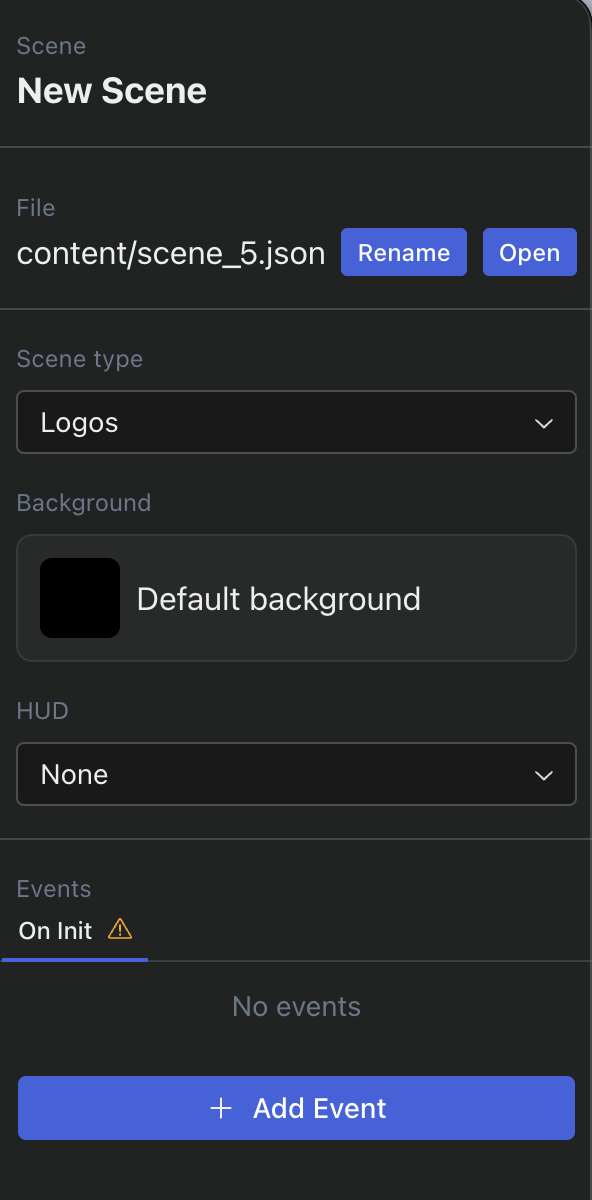
Scenes in GBA Studio (just like in GB Studio) define the type of game you want to make.
Scene Types
Here are the different scene types you can choose from:
- Logos (default): A scene typically used to display logos or introductory screens at the start or end of the game.
- Top-Down: A top-down view scene, typically used for RPGs or simple grid based games (like classic Pokémon games).
- Adventure: Same as top-down, but typically used for adventure games where movements are pixel based (like old Zelda games).
- Platformer/Side-Scroller: A side-scrolling view scene, typically used for platformer games (like classic Mario or Sonic games).
- Point & Click: Instead of controlling a character directly, the player is a cursor that interacts with the environment by clicking on objects or locations (like Monkey Island).
- Shoot 'em up: A scene type where the player controls a character or vehicle that continuously moves and shoots at enemies, typically seen in classic arcade shooters (like Gradius or R-Type).
- Racing: Same as adventure, but the player rotates instead of changing directions, made for racing games (like GT Racers).
Games can have multiple scenes of different types, allowing you to mix and match various gameplay styles within the same game. Feel free to experiment and add a splash of razzle-dazzle!
Backgrounds
Backgrounds in GBA Studio define the size and the visual appearance of your scene. They are imported in the Assets panel and have various restrictions & limitations, see the Backgrounds documentation for more details.
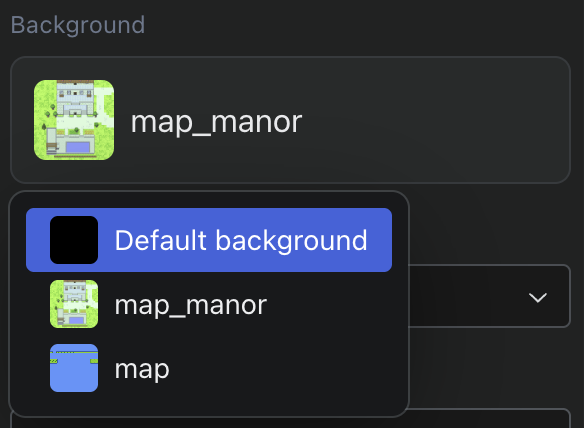
When changing the scene's background, collisions won't be automatically removed, but will not correspond to the new background's layout either. Please make sure to adjust the collisions manually after changing the background to match the new layout.
Content
Scenes are the core building blocks of your game, defining the environment, layout, and interactions. They can contain a variety of elements:
- Player: The main character controlled by the player within the scene (see Player documentation)
- Actors: Non-player characters or interactive objects that populate the scene, typically NPCs but can also include interactive objects like levers, springs, etc. (see Actors documentation)
- Collisions: Basically walls (see Collisions documentation)
- Sensors: Invisible triggers that can detect the presence of the player and trigger events (see Sensors documentation)
- Sprites: Very close to actors, but primarily used for visual representation rather than interaction (see Sprites documentation)
HUD
The HUD (Heads-Up Display) in GBA Studio is used to display important information to the player, such as health, score, or other runtime-specific data. See the HUD documentation for more details.
Advanced Settings
Top-Down
Grid Size
Default: 16 px
In most of the scene types (but we will focus on top-down scenes here), the grid size determines the size of each cell in the scene. Collisions, actors, sprites and sensors are all aligned to this grid.
Because it is assigned at scene initialization and collisions depend on it, the grid size cannot be a dynamic value like most other settings.
Changing the grid size will affect the alignment of everything in the scene. Please make sure to adjust all the elements in the scene after changing it.
Platformers
Gravity
Default: 1.0 px/frame²
In platformer scenes, gravity determines how quickly the player character falls when not on a platform. Gravity is represented in pixels per frame squared (e.g the number of pixels the character should fall per frame, squared by the acceleration due to gravity). Higher gravity values make the character fall faster, while lower values result in slower falls.
Jump Height
Default: 36 px
Jump height determines how high the player character can jump in platformer scenes. It is represented in pixels, indicating the maximum vertical distance the character can reach when performing a jump.
Jumps are cut in half if the player releases the jump button before reaching the maximum jump height. This allows for more precise control over the character's movements and enables variable heights.
Point-and-Click
Cursor
Default: Hand Sprite
The cursor in point-and-click scenes represents the player's interaction point with the scene. It is typically displayed as a hand sprite, indicating that the player can click on objects or navigate the scene.
Has Player
Default: True
By default, point-and-click scenes also have a player character, the same player used in other scene types. It is controlled by the cursor, reacts to collisions and possibly gravity.
Player Reacts to Gravity
Default: True
This setting determines whether the player character in point-and-click scenes is affected by gravity. When enabled, the player will fall according to the scene's gravity settings, similar to platformer scenes.
Keep in mind that your player cannot jump in point and click scenes. Design your levels accordingly (move player automatically after an action, introduce slopes, etc.)
Shoot 'em Up
Scroll Direction
Default: Right
By definition, shoot 'em up scenes involve continuous scrolling of the camera in a specific direction.
Scroll Speed
Default: 1 px/frame
Scroll speed determines how fast the camera moves in the specified scroll direction. Higher values result in faster scrolling, while lower values make the camera move more slowly.
Player Movement
Default: Both
This setting determines the allowed movement directions for the player character in shoot 'em up scenes:
- Both: allows movement in both horizontal and vertical directions.
- Horizontal: restricts movement to left and right only.
- Vertical: restricts movement to up and down only.
Player Inertia
Default: 0
Determines amount of slowdown effect applied to the player character's movement when changing directions. The higher the value, the more pronounced the slowdown effect will be.